
Education Portal 3.0 is an advanced digital platform introduced by the School Education Department of Madhya Pradesh for the 2025–26 academic session, which officially began on April 1, 2025. This upgraded portal brings multiple education-related services together in one integrated system, replacing earlier platforms such as Education Portal 2.0 and Shiksha Portal.
The platform supports more than 45,000 schools across Madhya Pradesh, enabling smooth management of various educational activities. Through this portal, schools can efficiently manage student enrollment, track attendance, manage guest teachers, and monitor academic operations in real time.
Developed in partnership with National Informatics Centre Services Incorporated (NICSI), the portal is designed to improve transparency, operational efficiency, and easy access to information. It serves all key stakeholders in the education Portal system, including students, teachers, school principals, and administrative authorities, by providing a centralized and user-friendly interface for managing school-related data and processes.
Through this portal, we learn that the Madhya Pradesh School Education Department has introduced a new system to enable schools, teachers, and students to manage educational activities digitally across the state. The platform allows users to handle student registrations, guest teacher appointments, educational records, and various administrative tasks in an organized online format.
What Is Education Portal 3.0?
Education Portal 3.0 is an advanced digital initiative that marks a major transformation in the education system of Madhya Pradesh. It is a centralized web-based platform designed to bring all school-related information and administrative processes into a single, easy-to-access system. The portal was introduced to address the limitations of earlier systems and to provide a modern, efficient, and user-friendly interface for managing educational activities.
The platform allows schools and authorities to manage academic and administrative data more efficiently while ensuring transparency and accuracy in the education Portal system.
Education Portal 3.0 Login Process
Accessing Education Portal 3.0 requires valid login credentials. The process is simple and slightly different depending on the type of user. Below are the step-by-step login instructions for various users.
For School Users (Principals and Teachers)
- Visit the official website of Education Portal 3.0– https://sederp.educationportal3.in/
- Click on the “Login” option available on the homepage.
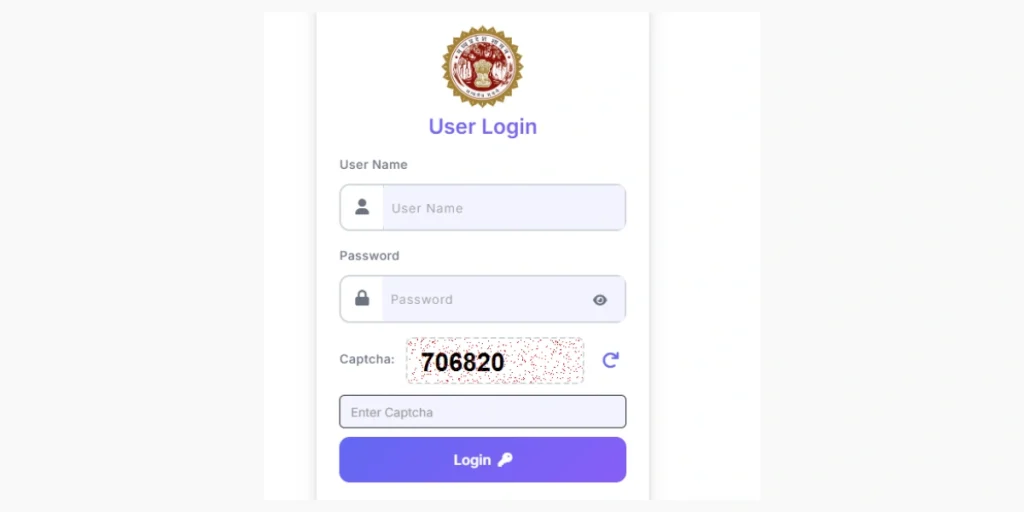
- Select “School Login” from the available options.
- Enter your school UDISE code as the username.
- Type the password provided by the District Education Office.
- Complete the CAPTCHA verification if required.
- Click on Submit to access your dashboard.
First-Time Login Steps
- When logging in for the first time, the system may ask you to change the default password.
- Create a strong password with at least 8 characters, including numbers and special symbols.
- Save the new password securely for future access.
For District Education Officers (DEO)
- Open the Education Portal 3.0 official website.
- Choose the “DEO Login” option.
- Enter the DEO User ID provided by the State Education Department.
- Type your assigned password.
- Complete two-factor authentication if enabled.
- After verification, you will access the district-level administrative dashboard.
For Guest Teachers (GFMS Login)
- Visit the GFMS portal linked with Education Portal 3.0.
- Click on “Guest Faculty User Login.”
- Enter your GFMS registration number as the username.
- Provide the password created during registration.
- Complete OTP verification if required.
- Once logged in, you can check your profile details, scorecard, and available vacancies.
Password Reset Process
If you forget your password, follow these steps:
- Click the “Forgot Password” option on the login page.
- Enter your username (UDISE code, DEO ID, or GFMS registration number).
- Provide the registered mobile number or email address.
- You will receive an OTP on your mobile or a reset link via email.
- Enter the OTP or open the reset link.
- Create a new password according to the security guidelines.
- Confirm the new password and log in again.
Security Tips
- Do not share your login credentials with anyone.
- Change your password regularly to maintain account security.
- Always log out after completing your work, especially on shared devices.
- Avoid using public Wi-Fi networks for accessing sensitive educational data.
- Contact the support team if you notice any unauthorized login activity.
If you continue to face login problems, you can contact the technical support team and provide your username along with a brief description of the issue.
Key Components of Education Portal 3.0
Unified Database: Maintains detailed records of students, teachers, and school infrastructure in one centralized system.
- Student Management: Manages student enrollment, attendance, academic performance tracking, and issuance of transfer certificates.
- Teacher Administration: Stores information related to regular and guest teachers, including appointments, verification, and work assignments.
- Real-Time Monitoring: Offers dashboards for officials to monitor school performance, attendance data, and administrative compliance.
- Guest Faculty Management System (GFMS): A dedicated module for handling guest teacher recruitment and management based on merit.
- Data Verification: Enables systematic verification of records for government, private, and aided schools.
- Mobile Integration: Supports mobile applications such as Hamare Shikshak App and Child Tracking App to improve accessibility and data management.
According to the Madhya Pradesh School Education Portal Department, the portal currently supports more than 45,000 schools across the state, with initial data verification already completed for over 3,200 schools in the Indore district. Users can access the platform through its official website.
Education Portal 3.0 Benefits
Education Portal 3.0 provides several important benefits for all stakeholders involved in the education system of Madhya Pradesh. By digitizing school operations, the portal improves efficiency, transparency, and accessibility across educational institutions.
For Schools and Administrators
- Reduces paperwork significantly through digital record management and automated processes.
- Minimizes data duplication and inconsistencies that previously occurred across different systems.
- Provides instant access to student and teacher records, helping administrators make faster decisions.
- Simplifies compliance reporting to district and state education authorities.
- Helps in better resource planning and staff allocation based on accurate enrollment and vacancy data.
For Teachers
- Makes attendance marking and grade entry easier through a simple digital interface.
- Reduces administrative workload, allowing teachers to focus more on teaching and academic activities.
- Ensures transparent and merit-based selection for guest teachers.
- Allows teachers to manage their profiles and upload documents online.
- Improves communication between teachers, school administration, and education officials.
For Students and Parents
- Allows online student enrollment, reducing the need for repeated visits to schools.
- Keeps academic records and certificates securely stored in digital format.
- Enables parents to monitor their child’s attendance and academic progress.
- Makes it easier to generate transfer certificates when changing schools.
- Provides regular updates regarding school activities and official announcements.
- For the Education Department
- Offers detailed data analytics to support better policy planning and resource distribution.
- Ensures accountability through proper verification of thousands of schools across the state.
- Speeds up administrative approvals by shifting processes to a digital platform.
- Supports data-driven decision making through real-time performance insights.
- Improves transparency in areas such as guest teacher recruitment and financial management.
Overall, the digital transformation through Education Portal 3.0 helps improve the accuracy of educational records, reduce manual errors, and create a more efficient and transparent education management system.
Education Portal 3.0 Objectives
The School Education Department of Madhya Pradesh developed Education Portal 3.0 with clear goals aimed at modernizing and improving the state’s education administration. The main objectives of the portal focus on digital transformation, operational efficiency, transparency, and better data management.
Digital Transformation
- Replace older and fragmented systems such as Education Portal 2.0 and Shiksha Portal with a single integrated platform.
- Reduce dependence on paper-based records and manual documentation.
- Provide 24/7 online access to educational data for authorized users from anywhere.
- Build a system that can easily integrate with national education platforms such as UDISE+.
Operational Efficiency
- Automate routine tasks including attendance recording, result preparation, and report generation.
- Reduce the time required for student admissions, transfers, and certificate issuance.
- Decrease data entry mistakes through standardized formats and validation systems.
- Simplify the process of guest teacher recruitment through transparent and merit-based selection.
Transparency and Accountability
- Offer real-time monitoring of school activities for education authorities and stakeholders.
- Maintain digital records of administrative actions for accountability and auditing.
- Ensure fair and transparent processes for guest teacher appointments.
- Provide accessible information about school performance and teacher vacancies.
Data Quality and Integration
- Maintain accurate and verified records of students, teachers, and school infrastructure.
- Integrate data with national identification systems such as Aadhaar, Samagra ID, and UDISE codes.
- Implement systematic verification of thousands of schools across the state.
- Establish a centralized and reliable database for educational information.
Stakeholder Empowerment
- Offer simple and user-friendly interfaces suitable for users with different technical skills.
- Allow rural and remote schools to participate easily in digital processes.
- Provide parents with direct access to their children’s academic details.
- Support teachers with tools that simplify their work and improve efficiency.
Resource Optimization
- Identify teacher vacancies accurately to improve staff allocation.
- Track student enrollment trends to plan school infrastructure and resources.
- Monitor academic performance to identify areas needing improvement.
- Reduce administrative costs through automation and paperless operations.
Overall, these objectives reflect the state government’s commitment to using technology to improve education management, transparency, and decision-making. The effectiveness of the portal will depend on its adoption, data accuracy, user satisfaction, and its contribution to improving educational outcomes across Madhya Pradesh.
Services Available On Education Portal 3.0
Education Portal 3.0 provides comprehensive digital services to manage all aspects of school administration. Below are the key services organized by user category:
Student Services:
- Online student registration and admission with Samagra ID integration
- Profile management including personal details, contact information, and family background
- Attendance tracking with daily, monthly, and annual reports
- Academic performance recording including marks, grades, and progress reports
- Transfer certificate (TC) generation with digital signatures
- Document upload facility for certificates, ID proofs, and photographs
- Student search functionality for administrators using multiple parameters
Teacher Management Services:
- Regular teacher profile creation and maintenance
- Guest teacher registration through GFMS module
- Teacher assignment to subjects and classes
- Experience certificate verification and points calculation
- Qualification document upload and verification
- Attendance and leave management
- Professional development activity tracking
Guest Faculty Management System (GFMS) Services:
- New guest teacher registration with qualification verification
- Re-joining requests for existing guest teachers
- Vacancy posting by schools with subject-wise details
- Merit list generation based on qualifications and experience
- Teacher-school matching and assignment
- Scorecard generation showing eligibility points
- Mobile number and profile update requests
- eKYC (Aadhaar-based verification) integration
School Administration Services:
- School registration for new institutions
- School profile updates including category changes
- Infrastructure details management
- Class and section configuration
- Academic calendar maintenance
- Result compilation and publication
- School closure and reopening requests
- UDISE code verification and updates
Data Verification Services:
- Systematic verification of school data by District Education Officers (DEO)
- Student data validation against Samagra ID database
- Teacher qualification verification by cluster heads
- Document authenticity checks
- Bulk data correction tools for identified errors
- Verification status tracking and reporting
Reporting and Analytics Services:
- Real-time dashboards for enrollment, attendance, and performance metrics
- District-wise and school-wise comparative reports
- Gender-wise and category-wise student distribution analysis
- Teacher-student ratio calculations
- Vacancy analysis reports
- Custom report generation tools for administrators
User Support Services:
- Online help documentation and user manuals
- Video tutorials for common tasks
- Email support at [email protected]
- Helpline numbers: 0755-2600124 (10:30 AM – 5:30 PM)
- Guest teacher support at [email protected]
- FAQ section covering common issues
- Ticket-based technical support system
- These services are accessible through the main portal at https://sederp.educationportal3.in and the guest faculty module at https://gfms.educationportal3.in. The platform operates 24/7, though support services have specific working hours.
How to Register a New School on Education Portal 3.0
The registration of a new school on Education Portal 3.0 is generally carried out by the District Education Officer (DEO). Schools must provide the necessary information and documents so that the registration can be completed through the portal.
Prerequisites for School Registration
- Before starting the registration process, the following details should be available:
- Valid school registration with the Education Department
- School recognition certificate issued by the concerned authority
- UDISE code (if already assigned)
- Basic information about school infrastructure and staff
- School bank account details
- Contact details of the Principal or Head of the school
Step-by-Step Registration Process
Step 1: DEO Login
- The District Education Officer logs into the official Education Portal 3.0.
- Access the administrative dashboard using DEO credentials.
- Navigate to the School Management section.
Step 2: Open the Registration Module
- Click on “School Directory” from the main menu.
- Select the “OIS Registration” option.
- Choose “School Registration” to open the registration form.
Step 3: Enter Basic School Details
- Provide the school name in English and Hindi.
- Select the school type (Government, Private, or Aided).
- Choose the school category (Primary, Middle, High, or Higher Secondary).
- Enter the recognition number and date.
- Add contact information such as phone number and email.
Step 4: Provide Location Information
- Select the district, block, or tehsil from the dropdown options.
- Choose the village or ward.
- Enter the complete address and PIN code.
- Add geographical coordinates if available.
Step 5: Add Infrastructure Details
- Number of classrooms available
- Status of boundary wall
- Drinking water and electricity facilities
- Separate toilets for boys and girls
- Availability of library and computer facilities
- Information about the school playground
Step 6: Upload Required Documents
- Upload the necessary documents in digital format, such as:
- School recognition certificate
- NOC from the concerned authority
- Land ownership documents
- Bank account proof
- Principal’s identification proof
- Building safety certificate
Step 7: Review and Submit
- Carefully review all the entered details.
- Ensure all required documents are uploaded correctly.
- Click “Save” or “Submit” to complete the registration.
- A school ID or UDISE code will be generated after submission.
How to Update Student Profile on Education Portal 3.0?
Schools can update a student’s profile on Education Portal 3.0 whenever corrections or changes are required. This process helps maintain accurate student records throughout the academic year. Follow the steps below to update student information.
Step 1: Access the Student Management Section
- Log in to your school account on the Education Portal 3.0 website.
- After successful login, open the main dashboard.
- Click on “Student Directory” from the navigation menu.
- Select “Profile Updation” from the available options.
Step 2: Search for the Student
- Choose the student’s current class from the dropdown menu.
- Select the section if applicable.
- Click on “Search” or “Load Students.”
- A list of students from that class will appear.
- Use the search option to find the student by name or Samagra ID.
- Click on the student’s name to open the profile.
Step 3: Update Student Information
Once the profile opens, you can edit the required fields. Common details that can be updated include:
- Student’s name (may require supporting documents)
- Father’s or Mother’s name
- Date of birth (with proper proof)
- Mobile number
- Residential address
- Category or caste information
- Bank account details (for scholarships)
- Aadhaar number
- Email address for senior students
Step 4: Upload Supporting Documents
If you modify important details such as the student’s name or date of birth, you may need to upload supporting documents. These can include:
- Birth certificate for date of birth corrections
- Aadhaar card for name or address updates
- Caste certificate for category changes
- Transfer certificate from the previous school
Documents should usually be uploaded in PDF or JPG format, and the file size should remain within the permitted limit.
Step 5: Save the Updated Details
- Review all updated information carefully.
- Ensure no required fields are missing.
- Click the “Save” or “Update” button.
- The system will verify the information.
A confirmation message will appear once the update is successfully submitted.
Step 6: Verification Process (If Required)
Certain updates may require approval from the District Education Officer (DEO). In such cases:
- The update will show as “Pending Verification.”
- The DEO will review the request and approve it within a few working days.
- Once approved, the updated details will appear in the student’s profile.
Common Situations
Updating Mobile Number: Schools can directly edit the mobile number and save the change. Approval is usually not required.
Changing Student’s Class: Class changes are handled through the Student Promotion module, not through profile updates.
Correcting Samagra ID: For Samagra ID corrections, schools must contact the District Education Office with valid documents.
Updating Records for Transferred Students: If a student transfers to another school, a Transfer Certificate (TC) should be generated first. The new school will then complete the admission process.
How to Generate Transfer Certificate (TC)
A Transfer Certificate (TC) is an important document issued when a student moves from one school to another. Education Portal 3.0 allows schools to generate TCs online through a simple process.
For Regular Active Schools
Step 1: Open the TC Module
- Log in to your school account on the Education Portal 3.0 website.
- Go to the “Student Directory” section from the dashboard.
- Click on “Generate Transfer Certificate.”
- The TC generation form will appear on the screen.
Step 2: Enter Student Details
- Enter the student’s Samagra ID in the search field.
- Click “Search” to retrieve the student’s record.
- The student’s profile details will appear.
- Carefully verify that the displayed information is correct.
Step 3: Fill Transfer Certificate Information
- The TC number may be generated automatically or entered manually if required.
- Select the date of TC issue.
- Choose the reason for leaving the school (such as family relocation or parent transfer).
- Enter the student’s conduct grade or remarks.
- Mention the last date of attendance.
- Confirm that all school dues are cleared.
- Add additional remarks if necessary.
Step 4: Generate and Print the TC
- Review all the entered details carefully.
- Click the “Generate TC” button.
- The certificate will be created in PDF format.
- Download and print the document on the school letterhead.
The TC must be signed by the Principal or Headmaster and stamped with the official school seal before handing it to the student or parent.
For Closed or Merged Schools
If a school has been closed or merged, the TC generation process may be slightly different.
Step 1: Access the Special TC Option
- Log in using the school credentials or UDISE code if still active.
- If login access is not available, contact the District Education Office (DEO).
- Go to the Student Directory section.
- Select the option related to TC generation for closed schools.
Step 2: Search Student Record
- Enter the student’s Samagra ID.
- The system will search the archived database of the closed school.
- If records exist, the student’s profile will appear.
Step 3: Generate the Certificate
- Fill the required TC details similar to the normal process.
- Some forms may require the UDISE code of the merged school.
- Complete all mandatory fields and click “Generate TC.”
- Download and print the certificate.
Step 4: Admission to a New School
- The printed TC must be submitted to the new school.
- The new school will verify the details.
- Admission will be completed through the Student Admission module using the student’s Samagra ID.
Alternative Method for Closed Schools
- If the portal does not allow TC generation:
- Contact the District Education Office directly.
- Provide the student’s Samagra ID and the previous school’s UDISE code.
- The DEO can generate the certificate from the backend system.
- The TC may be shared through email or collected from the district office.
Important Points to Remember
- Once a TC is generated, the student’s name is automatically removed from the school records.
- Reversing a TC entry usually requires approval from the District Education Officer.
- Schools should keep digital copies of all issued transfer certificates for reference.
- Each TC number must be unique and properly recorded.
- Ensure the last date of attendance is entered correctly.
- For board classes such as 10th or 12th, additional documentation may sometimes be required.
Guest Faculty Management System (GFMS) on Education Portal 3.0
The Guest Faculty Management System (GFMS) is a dedicated module within Education Portal 3.0 designed to manage the recruitment and administration of guest teachers in Madhya Pradesh government schools. This system simplifies the process of registration, verification, merit list preparation, and appointment of temporary teaching staff.
What is GFMS?
GFMS is a digital platform that helps manage the selection and assignment of guest teachers across government schools in Madhya Pradesh. It operates as part of the Education Portal 3.0 system and provides a transparent and merit-based process for teacher recruitment. The platform allows users to register, upload documents, check vacancies, and track application status online.
Key Features of GFMS
- Online registration for guest teachers with document uploads
- Automatic experience points calculation based on previous teaching service
- Scorecard generation displaying eligibility and merit points
- Schools can post subject-wise vacancies directly on the portal
- Automatic merit list preparation based on qualifications and experience
- Re-joining option for existing guest teachers
- Aadhaar-based eKYC verification for identity confirmation
- Mobile application “Hamare Shikshak” for easy access to services
Who Can Use GFMS?
The system is designed for different users within the education department, including:
- Candidates applying for guest teacher positions
- Existing guest teachers seeking re-joining opportunities
- School principals who post subject-wise vacancies
- Cluster coordinators responsible for document verification
- District Education Officers (DEO) who approve applications
- State-level officials who monitor recruitment activities
Registration Process for New Guest Teachers
To register as a guest teacher, candidates should follow these steps:
- Visit the GFMS portal linked with Education Portal 3.0.
- Click on “New Registration” under the Guest Faculty section.
- Enter basic details such as name, date of birth, and mobile number.
- Provide educational qualifications and professional details.
- Upload necessary documents including certificates, photo, and ID proof.
- Enter Samagra ID and Aadhaar number for verification.
- Complete the eKYC process.
- Submit the form and note the registration number.
- Login credentials will be sent through SMS or email.
Experience Points System
GFMS uses a points-based system to prepare the merit list:
- 1 point is given for each month of teaching experience.
- Additional points may be awarded for higher educational qualifications.
- Candidates must upload verified experience certificates.
- Cluster coordinators review and approve these claims.
- The total points determine a candidate’s ranking in the merit list.
Re-Joining Process
Existing guest teachers who want to rejoin can apply through the portal during the official re-joining period.
Steps include:
- Log in to the GFMS portal during the re-joining window.
- Open the “Re-Joining Request” section.
- Select the previous school and post.
- Fill in the required information and submit the request.
- The school principal reviews and approves or rejects the request.
- Candidates receive confirmation via SMS or email.
- If the previous school has been merged, teachers may need to use the Self Relieve option before applying.
Applying for Vacancies
Schools regularly post subject-wise vacancies on the GFMS portal. Candidates can apply by:
- Viewing available vacancies in their district or block
- Selecting preferred schools and subjects
- Submitting their choices during the choice filling period
- The system automatically generates a merit list based on qualifications and experience
- Selected candidates receive joining instructions from the department
Contact & Support (Official Government)
| Support Type | Contact Details | Description |
| General Helpdesk Email | [email protected] | Official support for technical issues related to Education Portal 3.0. |
| Guest Teacher Support Email | [email protected] | Official support for GFMS and guest faculty related queries. |
| Helpline Number | 0755-2600124 | Government helpline available from 10:30 AM to 5:30 PM for assistance. |
Frequently Asked Questions (FAQs)
What is Education Portal 3.0?
Education Portal 3.0 is a centralized digital platform introduced by the School Education Department of Madhya Pradesh to manage student records, teacher information, and school administration for more than 45,000 schools starting from the 2025–26 academic session.
How can I log in to Education Portal 3.0?
To log in, visit the official portal and choose your user category such as School, DEO, or Guest Teacher. Enter your username and password to access the dashboard. Guest teachers can log in through the GFMS portal.
What is GFMS and who can use it?
GFMS (Guest Faculty Management System) is a module used for managing guest teacher recruitment and assignments. It can be used by candidates applying for guest teaching positions, existing guest teachers, school principals, and education department officials.
How can I register as a guest teacher?
To register, open the GFMS portal and select “New Registration.” Fill in your personal and educational details, upload required documents, complete Aadhaar-based eKYC verification, and submit the form. After submission, you will receive a registration number for login.
What should I do if I forget my password?
Click the “Forgot Password” option on the login page. Enter your username or registration number, verify your identity through OTP sent to your registered mobile number or email, and create a new password.
How can I generate a Transfer Certificate (TC) for a student?
Log in to the school account, open the Student Directory, and select Generate Transfer Certificate. Enter the student’s Samagra ID, complete the TC details, generate the certificate, download the PDF, and print it on the school letterhead for official signature.
Why is my teaching experience not showing in the GFMS scorecard?
Make sure you have uploaded your experience certificates in the Experience Claim section. The documents are verified by the cluster coordinator, which usually takes a few days. If the points are still not updated, contact the support team.
How can I update student information on the portal?
After logging in, go to Student Directory → Profile Updation. Search for the student by class or Samagra ID, update the required information, upload supporting documents if needed, and save the changes.
What documents are required for guest teacher registration?
Applicants generally need to upload educational qualification certificates, teaching experience documents, Aadhaar card, Samagra ID, passport-size photograph, bank account details, and caste certificate (if applicable).
How can I contact technical support for the portal?
For portal-related issues, users can contact the official helpdesk email or helpline number provided by the education department during working hours. These support channels assist with login issues, registration problems, and other technical concerns.